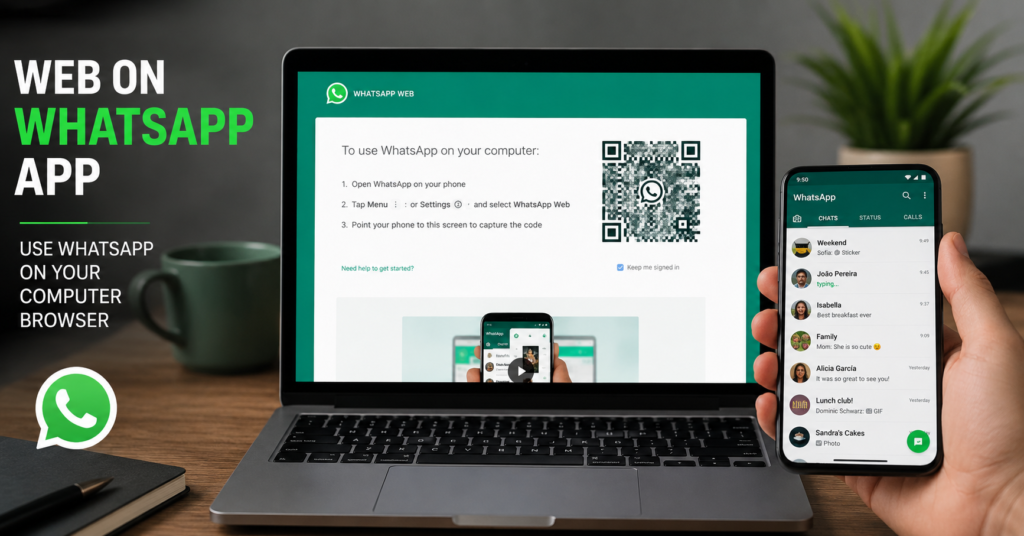

The web on WhatsApp app has become one of the most useful features for people who want to stay connected without constantly picking up their phones. Whether you are replying to work messages, chatting with family, or sharing files, WhatsApp Web offers a seamless experience across devices. Over the years, it has evolved into a reliable platform that mirrors your conversations while maintaining the security and convenience users expect from WhatsApp.
With millions of people relying on WhatsApp every day, understanding how the web version works can help you save time, improve productivity, and communicate more efficiently. This guide explains everything you need to know, from setup and features to security tips, troubleshooting, and frequently asked questions.
What Is the Web on WhatsApp App?
The web on WhatsApp app is a browser-based extension of your WhatsApp account. Instead of using only your smartphone, you can access your chats directly from a computer through a supported web browser.
Once linked, your conversations, photos, videos, and documents are synchronized across your devices. This allows users to type faster with a physical keyboard, manage conversations while working, and transfer files without relying solely on a mobile device.
Unlike traditional messaging platforms that require a separate account, WhatsApp Web works with your existing WhatsApp account, making the setup process quick and straightforward.
How WhatsApp Web Works
WhatsApp Web functions by securely connecting your mobile WhatsApp account with your computer. After scanning a QR code displayed on the website, your devices establish an encrypted connection.
Modern versions of WhatsApp now support multi-device technology, meaning your linked computer can continue working even if your smartphone is temporarily offline. This improvement has made the service much more dependable than earlier versions.
All messages remain protected with end-to-end encryption, ensuring that only you and the recipient can read your conversations.
Setting Up WhatsApp Web
Getting started takes only a few minutes.
Open your preferred browser on your computer and visit the official WhatsApp Web page. Open WhatsApp on your smartphone, access the Linked Devices section, and scan the QR code displayed on your computer screen.
Within seconds, your chats will appear on the desktop interface.
The process is simple enough for beginners while remaining secure for regular users who frequently switch between multiple devices.
Key Features of WhatsApp Web
The web on WhatsApp app offers almost every feature available in the mobile application.
Users can send and receive text messages instantly without noticeable delays. Photos, videos, voice notes, PDFs, spreadsheets, and presentations can all be shared directly from a computer.
Group conversations remain fully synchronized, allowing users to participate in discussions, share media, and manage notifications efficiently.
Emoji support, GIFs, stickers, and reactions are also available, making conversations feel just as natural as they do on mobile devices.
The search function allows users to quickly locate previous conversations or specific messages without endless scrolling.
Benefits of Using WhatsApp Web
Many professionals prefer WhatsApp Web because it increases productivity during working hours.
Typing with a full-sized keyboard is significantly faster than using a smartphone keyboard, especially when responding to lengthy conversations or customer inquiries.
File sharing also becomes much easier. Instead of transferring documents to your phone first, you can simply drag and drop files directly into the conversation.
Students appreciate the convenience of sharing assignments, notes, and presentations while studying on their computers.
Remote workers often keep WhatsApp Web open alongside email, project management tools, and office software, making communication much smoother throughout the day.
Security and Privacy Features
Security remains one of WhatsApp’s strongest advantages.
Every message exchanged through WhatsApp Web continues to benefit from end-to-end encryption. This means that neither WhatsApp nor any third party can read your private conversations.
Users should always log out after using shared or public computers.
The Linked Devices section in the mobile application allows users to view all connected devices and remove access immediately if something appears suspicious.
Two-step verification adds another layer of protection by requiring an additional PIN before account access is granted.
Keeping both your browser and WhatsApp application updated further reduces security risks.
Common Problems and Their Solutions
Although WhatsApp Web is generally reliable, occasional issues can occur.
Sometimes the QR code may fail to load. Refreshing the browser or checking your internet connection usually solves the problem.
If messages stop syncing, restarting the browser or reconnecting the linked device often restores normal functionality.
Users experiencing slow performance should close unnecessary browser tabs and ensure they are using the latest version of their preferred browser.
Browser cache can occasionally interfere with loading pages correctly, so clearing cached files may also resolve persistent issues.
Differences Between WhatsApp Web and the Desktop App
Many people wonder whether they should choose WhatsApp Web or the desktop application.
WhatsApp Web operates entirely within your browser, requiring no software installation.
The desktop application is installed directly onto Windows or macOS and sometimes delivers slightly better performance, notification handling, and system integration.
Both versions offer nearly identical messaging features, so the best choice depends on personal preference.
Users who frequently switch computers often prefer the browser version, while those who work from a single desktop may enjoy the convenience of the dedicated application.
Tips for Using WhatsApp Web More Efficiently
Learning keyboard shortcuts can significantly improve your messaging speed.
Pinning important chats keeps frequently contacted people easily accessible.
Using archived conversations helps maintain a clean inbox without permanently deleting messages.
Organising files before sending them saves time during work projects and collaborative tasks.
Keeping browser notifications enabled ensures you never miss important conversations while working in other applications.
Regularly reviewing linked devices also helps maintain account security.
Who Can Benefit Most from WhatsApp Web?
The web on WhatsApp app serves a wide range of users.
Business owners communicate with customers while managing orders from their computers.
Freelancers coordinate projects, exchange files, and respond to clients without constantly checking their phones.
Students collaborate on assignments, share lecture notes, and discuss coursework more efficiently.
Families use WhatsApp Web to stay connected while working from home, making communication easier throughout the day.
Content creators also rely on it to receive media files from collaborators and manage discussions without interrupting their creative workflow
Recent Improvements in WhatsApp Web
WhatsApp has continued improving its web experience over the past few years.
Multi-device support has greatly enhanced reliability by allowing linked devices to function independently for extended periods.
Performance has become faster, synchronization is smoother, and file-sharing capabilities have expanded considerably.
Voice and video calling support has also improved through desktop applications, giving users more communication options beyond simple text messaging.
These ongoing updates demonstrate WhatsApp’s commitment to delivering a modern communication platform that adapts to changing user needs.
Best Practices for Safe Usage
Even with strong security measures, good habits remain essential.
Always use the official WhatsApp website when accessing your account.
Avoid scanning QR codes displayed on suspicious websites claiming to offer additional WhatsApp features.
Never share verification codes with anyone, regardless of who requests them.
Enable two-step verification and regularly check active linked devices for unfamiliar logins.
Logging out from shared computers immediately after use helps prevent unauthorized access to private conversations.
Future of the Web on WhatsApp App
The future looks promising for the web on WhatsApp app as messaging continues evolving across multiple devices.
Users can expect improved synchronization, enhanced collaboration tools, better productivity features, and stronger privacy protections in future updates.
As more people work remotely and communicate digitally, browser-based messaging solutions will likely become even more important.
WhatsApp continues refining its services to provide a smoother experience for personal users, businesses, educators, and professionals alike
Conclusion
The web on WhatsApp app has transformed the way people communicate by bringing the convenience of WhatsApp directly to computers. Its simple setup, reliable synchronization, secure encryption, and productivity-focused features make it an excellent choice for anyone who spends significant time working from a desktop or laptop.
Whether you are sending documents, chatting with friends, managing business conversations, or collaborating with colleagues, WhatsApp Web offers a fast and dependable solution. By following recommended security practices and taking advantage of its growing feature set, users can enjoy a safer, more efficient messaging experience every day.
FAQ
What is the web on WhatsApp app?
It is the browser version of WhatsApp that allows users to access their chats and messages directly from a computer after linking their mobile account.
Is WhatsApp Web free to use?
Yes. WhatsApp Web is completely free for anyone with an active WhatsApp account and an internet connection.
Can I use WhatsApp Web without my phone?
Yes. Thanks to multi-device support, linked devices can continue working even if your phone is temporarily offline.
Is WhatsApp Web secure?
Yes. Messages remain protected with end-to-end encryption, and users can further improve security by enabling two-step verification and monitoring linked devices.
Can I send files through WhatsApp Web?
Yes. Users can easily send documents, images, videos, audio files, PDFs, and other supported file formats directly from their computer.
Does WhatsApp Web support group chats?
Absolutely. All group conversations are synchronized, allowing users to send messages, share files, react with emojis, and participate just as they would on the mobile app.